Saturday, October 01, 2011

Enable the (Hidden) Administrator Account on Windows 7 or Vista


Many people familiar with prior versions of Windows are curious what happened to the built-in Administrator account that was always created by default. Does this account still exist, and how can you access it?
The account is created in Windows 7 or Vista, but since it’s not enabled you can’t use it. If you are troubleshooting something that needs to run as administrator, you can enable it with a simple command.
Note: You really shouldn’t use this account for anything other than troubleshooting. In fact, you probably shouldn’t use it at all.
Enable Built-in Administrator Account
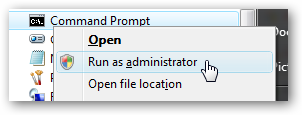
First you’ll need to open a command prompt in administrator mode by right-clicking and choosing “Run as administrator” (or use the Ctrl+Shift+Enter shortcut from the search box)
image
Now type the following command:
net user administrator /active:yes
image
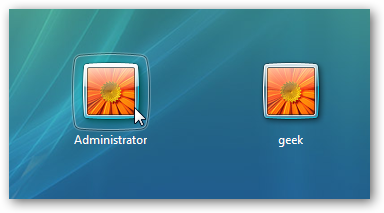
You should see a message that the command completed successfully. Log out, and you’ll now see the Administrator account as a choice. (Note that the screenshots are from Vista, but this works on Windows 7)
image
You’ll note that there’s no password for this account, so if you want to leave it enabled you should change the password.
Disable Built-in Administrator Account
Make sure you are logged on as your regular user account, and then open an administrator mode command prompt as above. Type the following command:
net user administrator /active:no
image
The administrator account will now be disabled, and shouldn’t show up on the login screen anymore.

Fix: Search Box is missing in Windows 7 Start Menu & Explorer

If you find that the search box is missing in the start menu and / or the windows explorer, then here is what you need to do!
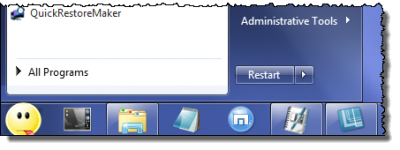
start search missing 400x150 Fix: Search Box is missing in Windows 7 Start Menu & Explorer
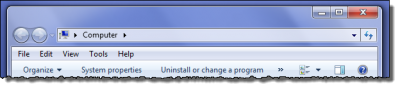
explorer search missing 400x89 Fix: Search Box is missing in Windows 7 Start Menu & Explorer
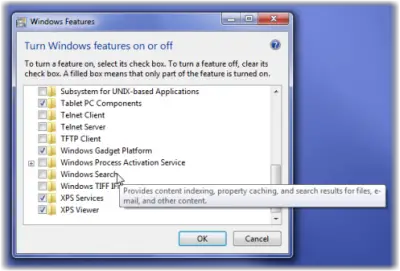
Open Control Panel > Programs and Features > Turn Windows Features on or off.
enable search windows7 400x271 Fix: Search Box is missing in Windows 7 Start Menu & Explorer
Select ‘Windows Search’ and click OK.
You will have to restart your computer.
Alternatively or additionally, you may also have to check if this registry key exists!
Open Registry Editor and navigate to the following registry key:
HKEY_CURRENT_USER\Software\Microsoft\Windows\CurrentVersion\Policies\Explorer
If a value called NoFind exists in the right pane, delete it.
A value 1 would mean that search and the following features have been disabled:
  • The Search item is removed from the Start menu and from the right click context menu.
  • The system does not respond when users press F3 or Win+F
  • The search item does not appear in the drive or folder right click context menu.
  • The search item may appear on the Standard Buttons toolbar, but Windows will not respond when you press CTRL+F.
If the key does not exist or has a value 0 then it is the default state; ie Search is enabled.
Exit regedit.
Always a good idea to back up the registry or create a system restore point first before touching the windows registry!
You can also open Group Policy Editor and navigate to User Configuration > Administrative Templates > Start Menu & Taskbar > Remove Search link from Start Menu
Ensure that Remove Search link from Start Menu is Disabled or Not Configured.
Should help!

enable folder options

Many times Windows users face a common problem. The "Folder Options" in "Tools" menu is not visible. Even It can't be accessed from Control Panel. Also "Registry Editor" is disabled.
If you are also facing this problem, then you have come to right place. Follow the simple steps mentioned in this tutorial and your problem will be solved:
1. If Folder Options is disabled but Registry Editor is still working in your system, then you can enable Folder Options by editing Windows Registry. Type regedit in RUN dialog box and press Enter. it'll open Registry Editor, now go to following keys:
HKEY_CURRENT_USER\Software\Microsoft\Windows\Current Version\Policies\Explorer
HKEY_LOCAL_MACHINE\Software\Microsoft\Windows\Current Version\Policies\Explorer
In right-side pane, check whether a DWORD value named NoFolderOptions exists or not? If it exists, delete it.
2. If you are not familiar with editing the registry, then you can simply download following file, extract it and then run the .REG file:
Download Registry Script
3. But sometimes Registry Editor is also disabled. Whenever you try to open regedit, Windows will show following error message:
Registry Editor has been disabled by administrator.
Its a symptom of “RONTOKBRO” Trojan. To remove this trojan, follow the instructions given in following topic:
Is Your System Infected with a Virus / Spyware / Adware / Trojan?
4. If its not a trojan problem and someone intentionally has disabled it in your system, then you can enable it again by following any of these methods:
a. Type gpedit.msc in RUN dialog box and goto:
User Configuration -> Administrative Templates -> System
in right-side pane, set "Prevent access to Registry editing tools" to either Not Configured or Disabled.
b. Just type following in RUN dialog box and press <ENTER>:
REG add HKCU\Software\Microsoft\Windows\CurrentVersion\Policies\System /v DisableRegistryTools /t REG_DWORD /d 0 /f
Now after enabling Registry Editor, you can re-enable Folder Options by following methods mentioned in 1st or 2nd steps.

enable run command in start menu

First, to be clear, in this prior article Where is the Run command on Windows Start Menu?, I discussed how the properties of the Windows Start menu include a checkbox for displaying the run menu. For example, in classic view:
Classic Start Menu Customize Dialog, Featureing the Display Run setting
However, I started getting reports that what many people were seeing was this:
Classic Start Menu Customize Dialog, Missing the Display Run setting
So, where did it go?
As I've remarked in a previous article about Task Manager being disabled, if you didn't disable it then a virus probably did.
Disabling Run is yet another way some viruses cause trouble and try to make it harder for you to deal with their infections. You should run a complete and up-to-date anti-virus scan of your machine. It's possible, perhaps even likely, that you've been infected.
Once you come back virus-free, we can proceed with the fix.
If you have Windows XP Pro you can use the Group Policy Editor to change the setting you want to repair. Click Start, then click Run, and type in gpedit.msc:
Start, Run, gpedit.msc
And press OK. This runs the Group Policy Editor.
Oh. Wait. You don't have Start, Run do you? That's why you're here. Smile
In that case, using Windows Explorer, navigate to c:\windows\system32 and double-click on gpedit.msc:
Group Policy Editor in Windows Explorer
Once in the Group Policy Editor, expand in turn:
  • User Configuration
  • Administrative Templates
And click on Start Menu and Taskbar. You should see something much like this:
Group Policy Editor, Start Menu and Taskbar Options
Double click on Remove Run menu from Start Menu to change its setting:
Remove Run Menu setting
It should be enough to click on Not Configured and then OK. If you now look at your Start menu properties, you should have the option of displaying the Run menu once again.
If you don't have Windows XP Pro, then you'll need to edit the registry manually.
Click Start, then click Run type in regedit and click on OK.
Or, since you probably don't have Run, using Windows Explorer you can double click on regedt32.exe in c:\windows\system32.
Expand these registry keys in turn:
  • HKEY_CURRENT_USER
  • Software
  • Microsoft
  • Windows
  • CurrentVersion
  • Policies
  • Explorer
You should see something similar to this:
Explorer Policies in Registrt Editor
Right Click on the NoRun item and click on Delete. Confirm that you want to delete, and you should have the option of displaying the Run menu once again.
One thing to note is that it's quite possible that if you're in an environment managed by a centralized policy, these settings may have no effect. Your IT administrator may set things up so as to disable the run command, and other things as well at the domain level. You'll need to ask them if this is the case.

Drivers for notebook Acer Aspire 3050


You can download free drivers for notebook Acer Aspire 3050. All required drivers are available for download, including drivers for audio, video, chipset, Wi-Fi or usb

AllAll drivers installation pack - DriverPack Solution
We recommend downloading DriverPack Solution for complete computer setup.
DOWNLOAD WHOLE INSTALLATION PACK
PCIPCI\VEN_00CC&DEV_00CCDownload* Find more
PCIATI Technologies / AMD: PCI\VEN_1002&DEV_4373Download* Find more
PCIATI Technologies / AMD: PCI\VEN_1002&DEV_437BDownload* Find more
PCIRealtek RTL8191SE 802.11b/g/n Wireless LAN Driver: PCI\VEN_10EC&DEV_0111Download* Find more
PCIRealtek RTL8191SE 802.11b/g/n Wireless LAN Driver: PCI\VEN_10EC&DEV_0119Download* Find more
PCIENE PCI SmartMedia / xD Card Reader Controller DOWNLOAD  Find more
PCIENE PCI Memory Stick Card Reader Controller DOWNLOAD  Find more
PCIENE PCI Secure Digital Card Reader Controller DOWNLOAD  Find more
PCIENE PCI Secure Digital / MMC Card Reader Controller DOWNLOAD  Find more
PCIENE CB-712/714/810 Cardbus Controller DOWNLOAD  Find more
PCIATI Radeon Xpress Series DOWNLOAD  Find more
PCIATI SMBus DOWNLOAD  Find more
PCIBroadcom 802.11b/g WLAN DOWNLOAD  Find more
PCIRealtek RTL8139/810x Family Fast Ethernet NIC DOWNLOAD  Find more
PCIAtheros AR5005G Wireless Network Adapter DOWNLOAD  Find more
PCIAtheros AR5006X Wireless Network Adapter DOWNLOAD  Find more
USBUSB\VID_0000&PID_0000Download* Find more
USBUSB\VID_043D&PID_0098Download* Find more
USBUSB\VID_04B8&PID_084DDownload* Find more
USBUSB\VID_05A9&PID_4519Download* Find more
USBUSB\VID_093A&PID_2626Download* Find more
USBUSB\VID_0FCA&PID_8004Download* Find more
USBUSB PC Camera (SN9C102) DOWNLOAD  Find more
USBVIMICRO USB PC Camera (ZC0301PLH) DOWNLOAD  Find more
USBZSMC USB PC Camera (ZS211) DOWNLOAD  Find more
USBISSC Bluetooth EDR Adapter DOWNLOAD  Find more
USBSlim 1320 DOWNLOAD  Find more
USB802.11n USB Wireless LAN Card DOWNLOAD  Find more
USBLinksys WUSB54GC Compact Wireless-G USB Network Adapter DOWNLOAD  Find more
AudioRealtek High Definition Audio DOWNLOAD  Find more
AudioHDAUDIO Soft Data Fax Modem with SmartCP DOWNLOAD  Find more
OtherDell Touchpad DOWNLOAD  Find more
OtherELAN PS/2 Port Input Device DOWNLOAD  Find more

Regedit has been disabled by the system administrator...


I share this to help u!!!

If you get the error saying “Regedit has been disabled by the system administrator” when trying to use the Windows XP registry editor, fear not. There is an easy way to re-enable regedit.
Click Start -> Run… and enter this command (all on one line) :
REG add HKCU\Software\Microsoft\Windows\CurrentVersion\Policies\System /v DisableRegistryTools /t REG_DWORD /d 0 /f
You may need to restart your computer for the changes to take effect.
In case your Run… menu has been disabled and you can’t use the above method here’s another way to make regedit work. Download regtools.vbs (by Doug Knox) and double-click the file. If everything goes well you will get a message box saying “Registry Editing Tools are now ENABLED”.
If the above tricks didn’t help and you still can’t access regedit then your computer is probably infected by a virus or spyware that is repeatedly disabling the registry editor. You will need to get rid of that malware first. Take a look at Spybot S&D (freeware) or Ad-Aware (shareware) for possible solutions.


e2 po gusto ko ibahagi sa inyo sana po maka2lung......

Dont forget to click my ADS by google!!!

How to Enable Automatic Logon in Windows XP


Logon passwords are often a necessity because of all the personal information people keep on their computers. Windows XP gives you the option to log on to your computer without a password. This is convenient as long as you don't mind that any sensitive information on your hard drive or in your network will be available to people who have access to the computer.

  1. Step 1
    Start the PC and let Windows XP load normally. Click "Start," then "Run," and type in "Regedit" into the window that pops up. A window with the registry will appear. Search for the registry key "HKEY_LOCAL_MACHINE\SOFTWARE\Microsoft\ WindowsNT\CurrentVersion\Winlogon."
  2. Step 2
    Double-click on "Default User Name," then type in your user name when prompted. Click "OK." Next, double-click the "Default Password," enter your password and again select "OK." When typing anything into the registry, be sure you're accurate.
  3. Step 3
    Add a value to the Default Password, if there isn't one already, by going back to the "Registry Editor." Select "Edit," "New," and "String Value." Type in "Default Password," no spaces, then press "Enter." Double-click this new key you created, and type your password into the "Value Data" area.
  4. Step 4
    Find and double-click "Auto Admin Logon." In the "Value Data" box, type "1" and click "OK." The "1" in this position will make automatic logon the default every time XP starts.
  5. Step 5
    Create the "Admin Auto Logon," if there isn't one, by going back to the "Registry Editor." Click "Edit," "New" and "String Value" in that order. Enter the words "Auto Admin Logon" as the new string value for the name, then press "Enter." Double-click the new key and type "1" in the "Value Data" to turn this key on.
  6. Step 6
    Quit the Registry Editor, choose "Restart" and "OK." After you restart Windows XP, the computer will now log in automatically as this user.

How To Enable Task Manager


  1. Click Start
  2. Click Run
  3. Type REGEDIT
  4. Click OK The Registry Editor will now open
  5. Browse to the following key:
    HKEY_CURRENT_USER\Software\Microsoft\Windows\
    CurrentVersion\Policies\system
  6. In the right pane, look for the value: DisableTaskMgr
  7. Right click DisableTaskMgr and select Delete. (When prompted with "Are you sure you want to delete this value", select Yes.
  8. Now browse to the following key:
    HKEY_LOCAL_MACHINE\SOFTWARE\Microsoft\Windows\
    CurrentVersion\policies\system
  9. In the right pane, look for the value: DisableTaskMgr
  10. Right click DisableTaskMgr and select Delete. (When prompted with "Are you sure you want to delete this value", select Yes.
  11. Close the Registry by choosing File | Exit
  12. You should now be able to access Task Manager. If not, reboot into Safe Mode and repeat the steps outlined above.

Enable Task Manager in Windows XP


  1. 1
    Start Windows in your normal manner.
  2. Step 2
    Click "Start." Then highlight and click "Run."
  3. Step 3
    Type "REGEDIT" into the text bar and press "Enter."
  4. Step 4
    Navigate through the registry, looking for the following directory: "HKEY_CURRENT_USER \ Software \ Microsoft \ Windows \ CurrentVersion \ Policies\ System."
  5. Step 5
    Right-click on the "HKEY_CURRENT_USER" and click "New" from the context menu to include a new string. This is only necessary when the necessary directory is not currently present in the registry. By default, Windows XP Home Edition does not include the necessary directory string.
  6. Step 6
    Click on the "DisableTaskMgr" phrase and delete it. This is the simplest way to do it, but it makes it more of a challenge to repair in the future. You will need to manually reenter the string if you didn't back up first.
  7. Step 7
    Change the numbers in the boolean section of the entry from one to zero. This will enable the Task Manager in Windows XP. Note that the zero is essentially equivalent to a positive entry in this regard, as the initial string is a negative.
  8. Step 8
    Change the string manually from the "Run" window of the Start Menu, without having to access the Registry Editor. Simply type "REG add HKCU\Software\Microsoft\Windows\CurrentVersion\Policies\System /v DisableTaskMgr /t REG_DWORD /d 0 /f" into the text field and press "Enter."

Dell Latitude D600 driver

Download Dell Latitude D600 Drivers comes with Intel mobile 855PM Chipset drivers, SIGMATEL Audio Drivers powered by Intel Pentium 1.6GHz M processor and 2GB of system memory.
Dell Latitude D600 Drivers Download By Device wise For Windows xp, windows Vista :
Category Driver Download Link
Chipset Drivers Intel mobile 855PM chipset driver
Audio Drivers Sigmatel Audio Drivers Audio Driver
Wireless LAN Broadcom 570x Gigabit Integrated Controller Driver
Modem Conexant D480 MDC V.92 Modem Driver
Graphic Drivers ATI Mobility Radeon 9000 graphic Driver
Wireless LAN Intel (R) PRO/Wireless Network Connection
The 14” thin-and-light Latitude D600 series comprises of the new Pentium M processor, especially designed with a new corporate look. New D-Family Notebook builds on the accomplishments and customs of the C-series, optimizing the latest performance and efficiency features. It is through D series that Dell fully customizes business solutions for mobile professionals. Dell D600 Laptop offers a desktop PC performance on the road. Powered with the latest processor along with Intel 855PM chipset the notebook provides for the latest mobile technologies, advanced processing power, enhanced battery life for extended mobility. The notebook supports up to 2GB memory along with latest ATA-100 hard drive. Latitude D600 Notebook is also equipped with an integrated dual band antenna, a 32MB ATI Mobility Radeon 9000 graphics chip, MiniPCI WiFi Intel PROWireless 2100 802.11b wireless LAN card which offers its user wireless Intel Centrino mobile technology. The user is also provides with the option between a Dell TrueMobile 1300 802.11 b/g wireless LAN card or a Dell TrueMobile 1400 802.11 a/b/g wireless LAN card. Latitude D600 also includes an integrated 10/100/1000 Ethernet 4 chip supporting Wake-on-LAN and integrated 56K v.92-capable modem supporting Wake-on-Ring. The notebook also includes both Touchpad and pointing stick for users convenience.

Remove NetWare Client (Windows)


Windows XP Professional

  1. Open Network Connections (Start > Control Panel > Network Connections)
  2. Highlight the Local Area Connection entry where the Novell Client for NT/2000 is being used.
  3. Click Properties to bring up the properties dialog for that connection.
  4. Highlight the Novell Client for Windows entry in the connection properties.
  5. Press the Uninstall button. Windows will confirm that you want to remove the Novell Client for Windows from all connections and not just the current connection.
  6. Answer Yes to this prompt and the Novell Client for Windows and dependent Windows network services will be removed.

How To Restore Hal.dll From the Windows XP CD


The hal.dll file is a hidden file that is used by Windows XP to communicate with your computer's hardware. Hal.dll can become damaged, corrupted or deleted for a number of reasons and is usually brought to your attention by the "missing or corrupt hal.dll" error message.
Follow these easy steps to restore the damaged/corrupted or missing hal.dll file from the Windows XP CD using the Recovery Console.


Time Required:
Restoring hal.dll from the Windows XP CD usually takes less than 15 minutes
Here's How:
  1. Enter Windows XP Recovery Console.
  2. When you reach the command line prompt (detailed in Step 6 in the link above), type the following and then press Enter:
    
     expand d:\i386\hal.dl_ c:\windows\system32
    Using the expand command as shown above, d represents the drive letter assigned to the optical drive that your Windows XP CD is currently in. While this is most often d, your system could assign a different letter. Also, c:\windows represents the drive and folder that Windows XP is currently installed on. Again, this is most often the case but your system could be different.
  3. If you're prompted to overwrite the file, press Y.
  4. Take out the Windows XP CD, type exit and then press Enter to restart your PC.
    Assuming that a missing or corrupt hal.dll file was your only issue, Windows XP should now start normally.

How To Restore NTLDR and Ntdetect.com From the Windows XP CD


The NTLDR and Ntdetect.com files are important system files that are used by your computer to start the Windows XP operating system. These files can become damaged, corrupted or deleted for a number of reasons and are usually brought to your attention by the "NTLDR is Missing" error message.
Follow these easy steps to restore the damaged/corrupted or missing NTLDR and Ntdetect.com files from the Windows XP CD using the Recovery Console.

Time Required: Restoring the NTLDR and Ntdetect.com files from the Windows XP CD usually takes less than 15 minutes
Here's How:
  1. Enter Windows XP Recovery Console.
  2. When you reach the command prompt (detailed in Step 6 in the link above), type the following two commands, pressing Enter after each one:
    copy d:\i386\ntldr c:\
    copy d:\i386\ntdetect.com c:\
    In the command listed above, d represents the drive letter assigned to the optical drive that your Windows XP CD is currently in. While this is most often d, your system could assign a different letter. Also, c:\ represents the root folder of the partition that Windows XP is currently installed on. Again, this is most often the case but your system could be different.
  3. If you're prompted to overwrite either of the two files, press Y.
  4. Take out the Windows XP CD, type exit and then press Enter to restart your PC.
    Assuming that missing or corrupt versions of the NTLDR and/or Ntdetect.com files were your only issues, Windows XP should now start normall

How To Repair or Replace Boot.ini in Windows XP


The boot.ini file is a hidden file that is used to identify in what folder on which partition and on which hard drive Windows XP is located. Boot.ini can become damaged, corrupted or deleted for a number of reasons and is usually brought to your attention by an error message.
Follow these easy steps to repair the damaged/corrupted boot.ini file or replace it if it has been deleted.
Difficulty: Easy
Time Required: Repairing or replacing the boot.ini file usually takes less than 10 minutes
Here's How:
  1. Enter Windows XP Recovery Console. The Recovery Console is an advanced diagnostic mode of Windows XP with special tools that will allow you to restore the boot.ini file.
  2. When you reach the command line (detailed in Step 6 in the link above), type the following command and then press Enter.
    bootcfg /rebuild
  3. The bootcfg utility will scan your hard drives for any Windows XP installations and then display the results. Follow the remaining steps to add your Windows XP installation to the boot.ini file.
  4. The first prompt asks Add installation to boot list? (Yes/No/All).
    Type Y in response to this question and press Enter.
  5. The next prompt asks you to Enter Load Identifier:.
    This is the name of the operating system. For example, type Windows XP Professional or Windows XP Home Edition and press Enter.
  6. The final prompt asks you to Enter OS Load options:.
    Type /Fastdetect here and press Enter.
  7. Take out the Windows XP CD, type exit and then press Enter to restart your PC.
    Assuming that a missing or corrupt boot.ini file was your only issue, Windows XP should now start normally.

What Is the Bootcfg Command?:

Bootcfg

What Is the Bootcfg Command?:
The bootcfg command is a Recovery Console command used to build or modify the boot.ini file, a hidden file that is used to identify in what folder, on which partition, and on which hard drive Windows is located.
Bootcfg Command Syntax:
bootcfg /list
/list = This option will list every entry in the boot list in the boot.ini file.
bootcfg /scan
/scan = Using this option will instruct bootcfg to scan all drives for installations of Windows and then display the results.
bootcfg /rebuild
/rebuild = This option will step you through the process of rebuilding the boot.ini file.
bootcfg /default
/default = the /default switch sets the default boot entry in the boot.ini file.
bootcfg /add
/add = This option allows for the manual entry of a Windows installation in the boot.ini boot list.
Bootcfg Command Examples:
bootcfg /rebuild
In the above example, the bootcfg command scans all drives for any Windows installations, displays the results, and steps you through building the boot.ini file.
Bootcfg Command Availability:
The bootcfg command is only available from within the Recovery Console in Windows 2000 and Windows XP.

Install Windows XP on SATA without a Floppy (F6)


Tips & Tricks


SATA hard drives have become more and more appreciated tending to substitute the IDE drives due to the increasing speed they offer. Motherboard manufacturers started to implement the new standard years ago, when the technology was young and expensive. Now, as the SATA HDD prices have lowered to a level where anybody can afford to choose a SATA enabled HDD instead of an IDE one, a great migration has been observed among the common computer users.

They choose to install Windows and applications on SATA drives because they provide more speed which determines the system to run smoother. Thus, for those owning older mainboards with SATA support an extra step is required while attempting to install Windows XP. Windows XP does not provide drivers for all the SATA controllers, therefore, during the installation procedure, the user must insert a floppy with the drivers that came in the package along with the motherboard.

Not a big deal, not much effort, but the funny thing is that a great number of people passed on their floppy drives. Under these circumstances, no floppy means the impossibility to install Windows XP on SATA (on some mainboards). The result? The installation guide simply won't detect the SATA HDD.

People that were happy they got rid of the old removable drive have now motives to worry. Some may reconsider buying new floppy drives for their computers. Even if I wrote in a precedent article about the utility of the floppy drive, I do not encourage spending your money buying back an obsolete piece of hardware. I will present you a method to avoid this inconvenient by doing a software trick.

Let's take it slow. Where is the problem? We have a driver problem strictly because the SATA driver we need does not come embedded in the Windows XP installation package. What if we add the driver by ourselves before installing Windows?

What ingredients are involved in this operation? The original Windows XP Installation CD, a freeware application named NLite and a blank CD. Moreover, we need the drivers for the SATA controller provided by the manufacturer. In case you did not find any floppy inside the motherboard package or you cannot locate them on the mainboard
installation CD, you can consult the manufacturer's website to download the latest versions. To do the trick I have been talking about, it is assumed that you already have a Windows installed on an IDE drive. In case you don't, pay a visit to a friend and ask him to let you use his computer. It won't take too much time, I guarantee.

So, download the drivers and unzip them (in case they come archived) in a desired location. Then download and install the Nlite application. When you start the Nlite application, you will be asked to provide the location for the Windows installation package. Insert the genuine Windows Installation CD into the CD drive and, inside the application, select the CD drive letter.

To insert the SATA drivers within the installation package, you need to have it saved on the HDD. Hence, when the warning window appears click OK and select the destination folder for the files to be saved. Make sure that the destination partition / HDD has enough space to store the contents of the installation CD.

I tested a Windows XP Home Edition and it seems that it required about 566 MB. Immediately after you have chosen the destination folder, the application will start copying the Windows installation files. When finished, it will display some version information regarding the newly copied Windows Installation Package.

Now, click next twice until you get to a screen where you get options sorted in 4 categories: Integrate, Remove, Setup, Create. We are interested in the integration procedure, therefore select the Drivers button and click next. From the next menu window, click Insert and select multiple drive folder option from the drop down menu. This option permits you to browse to the location where the downloaded drivers are found.

Select the containing directory and click next. You will get a list with the available drivers (in case there are more than one) or simply one driver. Select it (them) and click next. Now the application will ask for the permission to start the integration procedure. Choose Yes and wait for the drivers to be inserted into the installation package.
Review image Review image Review image Review image Review image

Review image Review image Review image Review image


With problematic driver being included in the installation package you can install Windows XP on your SATA HDD...but...the installation package is on the HDD. You need a bootable CD in order to start an installation. Don't worry, once the installation package has been adorned with additional user selected drivers it can be transformed into a bootable disk image and later burned on a CD. To encapsulate the installation into a ISO image use the same Nlite application.

Open it, make sure the HDD installation folder is selected and click next. Select "Last session" preset and click next again. Now from the options menu choose Bootable ISO and click next. In the following window, make sure that the mode is set to "Create Image" and click Make ISO. A destination folder is required where the resulting ISO image will be saved. Once the image saving process finished you have the freedom to burn it on a blank CD with whatever you favorite CD burner software may be.
Review image Review image


The new CD will be the twin copy of the Windows Installation CD but with one difference, it includes the SATA driver.
How to Create Password-Protected Hard Disk Partition


A while ago, I wrote about Rohos Mini Drive. This handy application allows you to create a hidden password-protected partition on your USB drive. So if you can create password-protected partition on USB drive, how about creating such disk partition on your hard drive? For sure, it will be so cool!

Secret Disk is a free application for Windows that enables you to create an invisible password-protected hard disk partition on your PC to store all your important files and folders. Secret Disk doesn’t password protect your existing disk partition, but will create a separate partition for your private files.

Read also – 5 Free Tools to Lock/Hide Your Files and Folders

After successful installation, you need to provide password to lock and unlock the disk partition. On the main window of Secret Disk, you will see the status of your Secret Disk. It can be locked and unlocked state. When the disk is in locked state, the disk is invisible in your Windows system. You will not find the disk on My Computer area.

Create Hidden Password-Protected Disk Partition

To unlock and access the files in the hidden password-protected disk, you need to click the “Unlock” button and provide the correct password. When the disk has been unlocked, the disk (with letter X) will appear as additional disk partition in My Computer. You can now start working with your private files to save them to secret disk X.

Create Hidden Password-Protected Disk Partition

To lock your Secret Disk, click on the “Lock” button on the main window of Secret Disk or just press the F8 key (You need to first change the settings). The disk will completely disappear within one second and all your files on it will be protected.

Download Secret Disk

How to enable Display Control Panel

Registry Editor Example
|NameTypeData|
|(Default)REG_SZ(value not set)|
|NoControlPanelREG_DWORD0x00000001 (1)|
-
|HKEY_CURRENT_USER\Software\Microsoft\Windows\CurrentVersion\...|
-
Registry Settings
User Key: [HKEY_CURRENT_USER\Software\Microsoft\Windows\CurrentVersion\Policies\
Explorer]
System Key: [HKEY_LOCAL_MACHINE\Software\Microsoft\Windows\CurrentVersion\Policies\
Explorer]
Value Name: NoControlPanel
Data Type: REG_DWORD (DWORD Value)
Value Data: (0 = disable restriction, 1 = enable restriction)
>> Recommended Download - check, repair and optimize your registry now with Registry Mechanic <<
Disclaimer: Modifying the registry can cause serious problems that may require you to reinstall your operating system. We cannot guarantee that problems resulting from modifications to the registry can be solved. Use the information provided at your own risk.
If XP Pro, there are settings in Group Policy for Control Panel.

Here's one...

Start | Run | Type: gpedit.msc | OK |
Navigate to >>>
User Configuration\Administrative Templates\Control Panel\
Prohibit access to the Control Panel
[[Disables all Control Panel programs.]]

This is what gets set by the policy above.

HKEY_CURRENT_USER\Software\Microsoft\Windows\CurrentVersion\
Policies\Explorer
Value Name: NoControlPanel
Data Type: REG_DWORD
Value Data: 0 or 1
0 = disable restriction
1 = enable restriction

Also, see:

"Remove Display in Control Panel" setting in User
Configuration\Administrative Templates\Control Panel\Display.

User Configuration\Administrative Templates\Control Panel\
Hide specified control panel applets

--
Hope this helps. Let us know.

Wes
MS-MVP Windows Shell/User

In news:75681949-8138-4F75-8468-8050E739A087@microsoft.com,
Wilbur hunted and pecked:
> I'm trying to change my screensaver, I get a error message saying;
> "Your system Administrator disabled the Display Control Panel." I am
> the System Administrator. I need to find a way to enable it again.